In InfoReady, the base term "Applicant" refers to the user's account where the submission data will live. Typically, this is the person submitting the initial form or application. However, it may also be the user a proxy selects when submitting on someone's behalf.
When a user is filling out a form, the "Applicant First Name" and "Applicant Last Name" fields will be populated with the relevant user's data and cannot be edited. This is to prevent data and communication errors downstream.
Administrator View
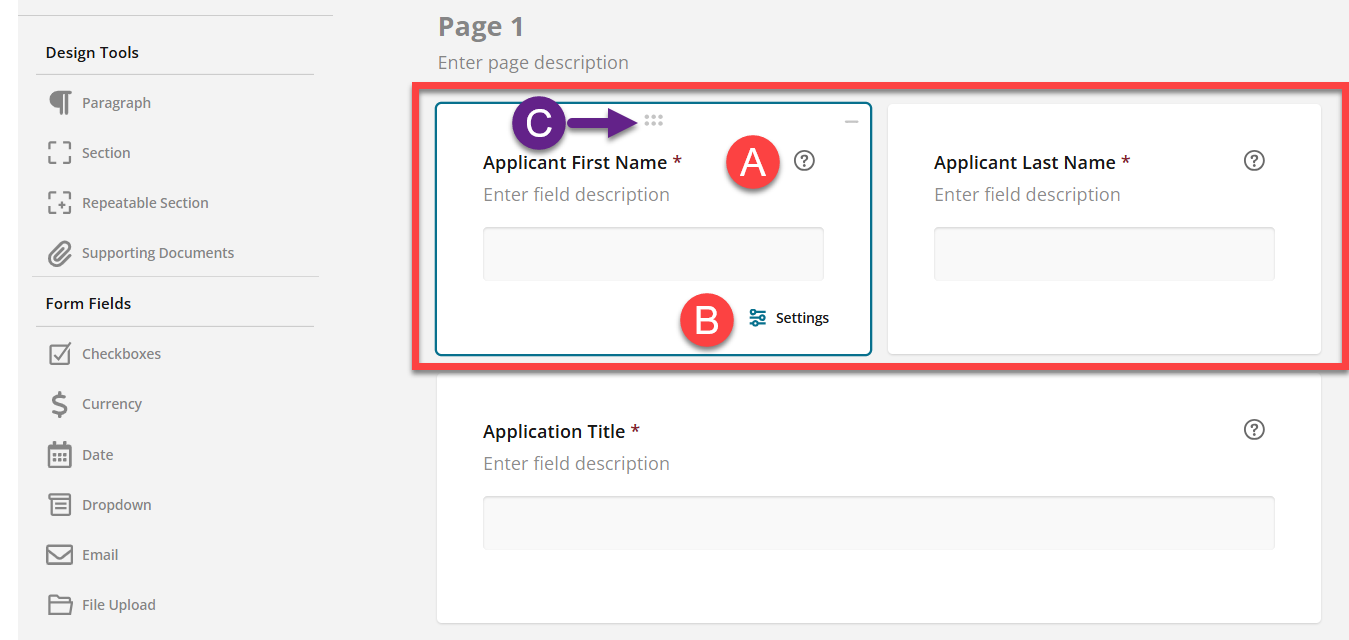
- On the Requirements page, Administrators will see these fields at the very top of the screen in the Designer tab.
- A - Tooltips for each explain that:
- the fields must be used and cannot be renamed
- the response entered will display in email notifications anywhere the {applicant name} mail merge field is used
- B - Settings that allow Administrators to:
- Add additional instructions for the field
- Hide the field from reviewers (for a blinded review) if needed
- C - Move the fields to a different location by clicking the 6 dots at the top of the box and dragging.
What if the term "Applicant" doesn't fit my process?
Though "Applicant" is the base InfoReady term, you have options for modifying if needed:
- Clarify with instructions below the default fields so users understand why their name appears:

- Request that the term "Applicant" be changed for your site. Because this is a global change, a top-level Administrator will need to submit a support ticket to request the change.
- For example, you can change the term "Applicant" to the more generic "Submitter", which would then make the default fields show as "Submitter First Name" and "Submitter Last Name".
Have more questions about this topic? Go to the Community Forum to pose the question to other users or submit a support ticket to InfoReady.