You do not need to log into an InfoReady account in order to submit a reference. Here's how it works:
When an applicant lists you as a reference, you will receive an email like the one below.
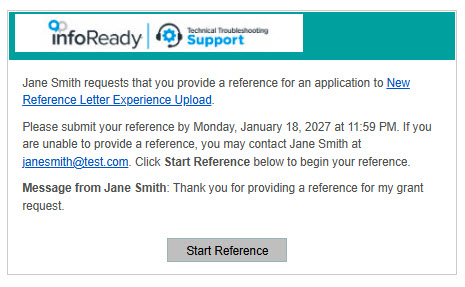
Click the Start Reference button.
- You'll be taken to a submission page like the one shown below.
- Follow the instructions at the top of the page.
- Fill out the questions in the form.
- If a letter is required, you may upload your letter by clicking the Select File button.
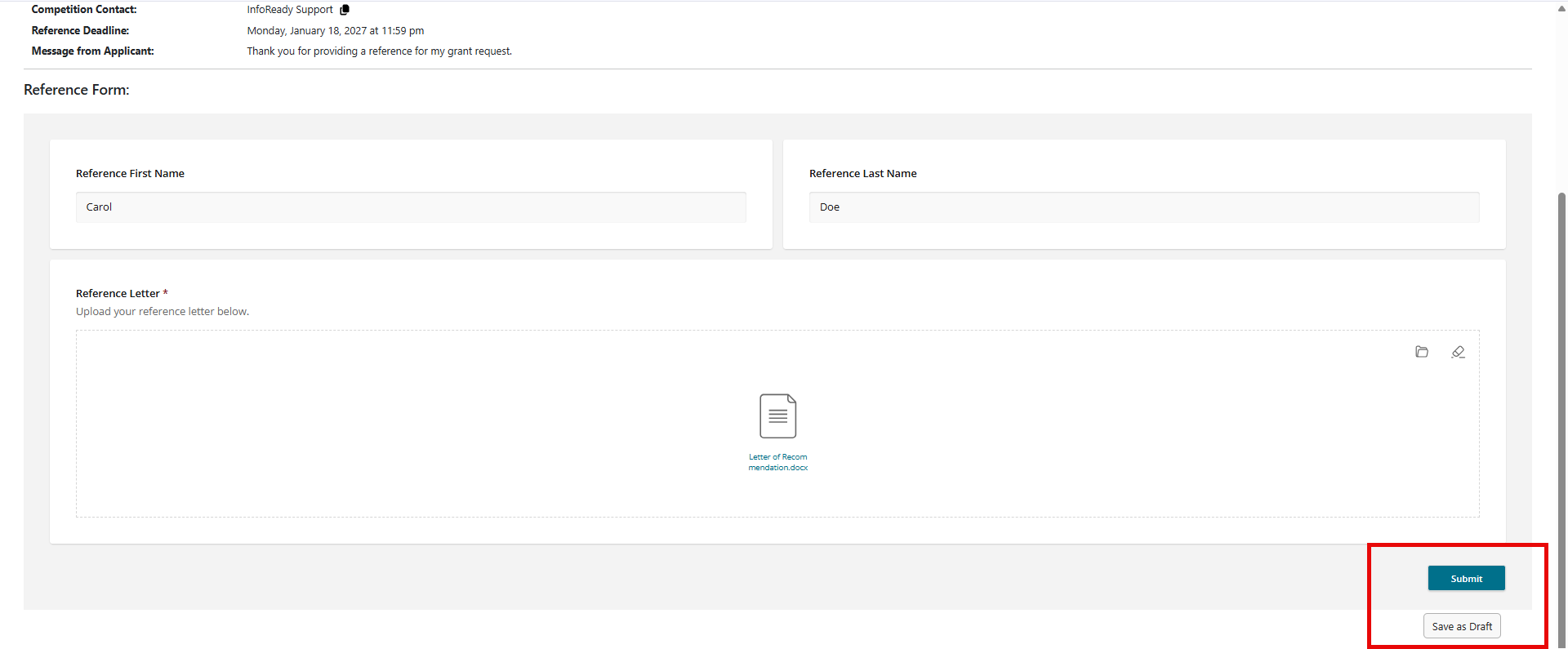
- Once the form is completed then click the Submit button.
- If you need to come back to complete the form, you can click the Save as Draft button and return to the form using the same link in the email notification you received.
Note: If the due date for the letter request has passed, when you click the “Start Reference” button, you will be notified of the deadline and will not be able to submit using this process. In cases like these, please reach out to Competition Contact listed on the Submit reference page.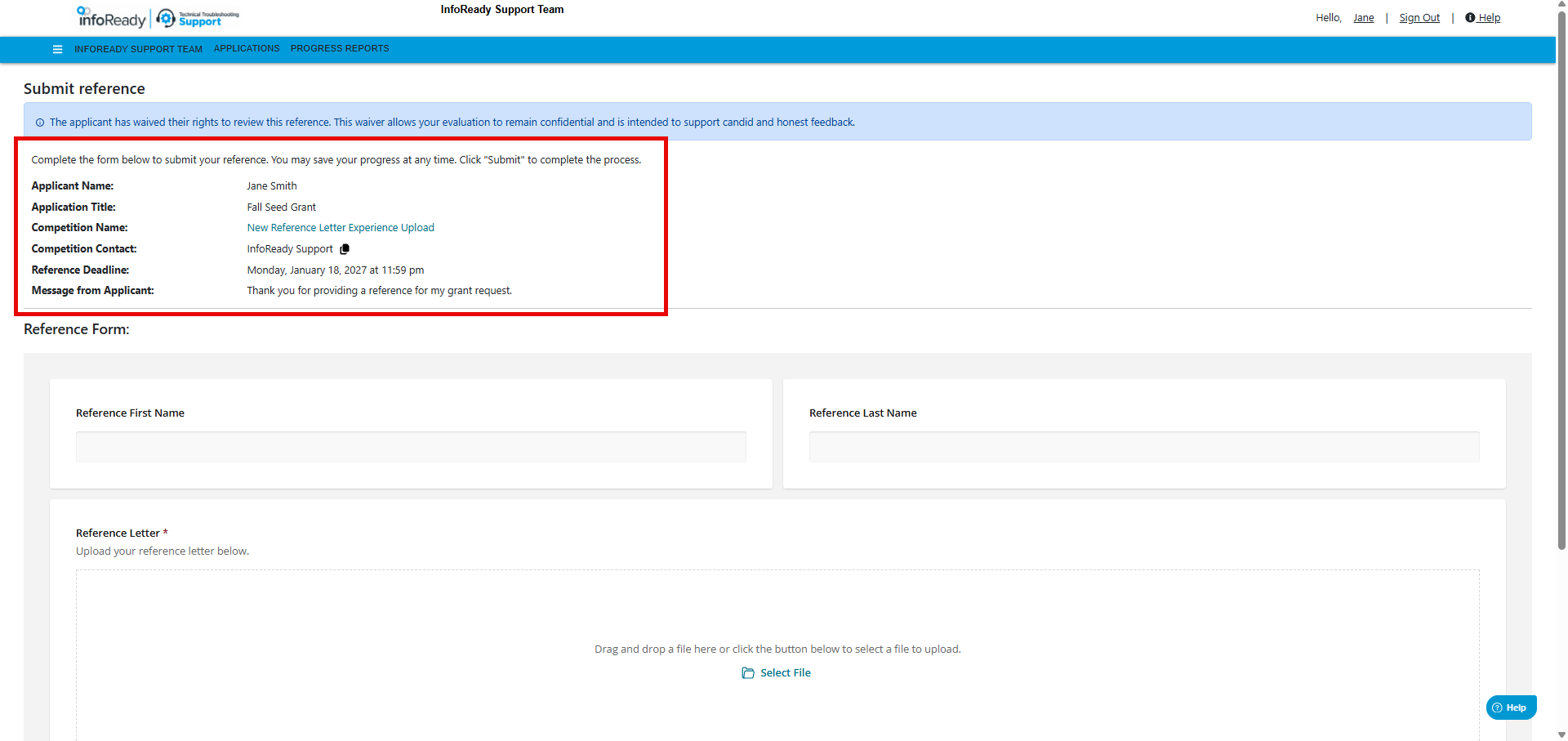
Save as Draft and Submit buttons are located in the right-hand hand corner of the form
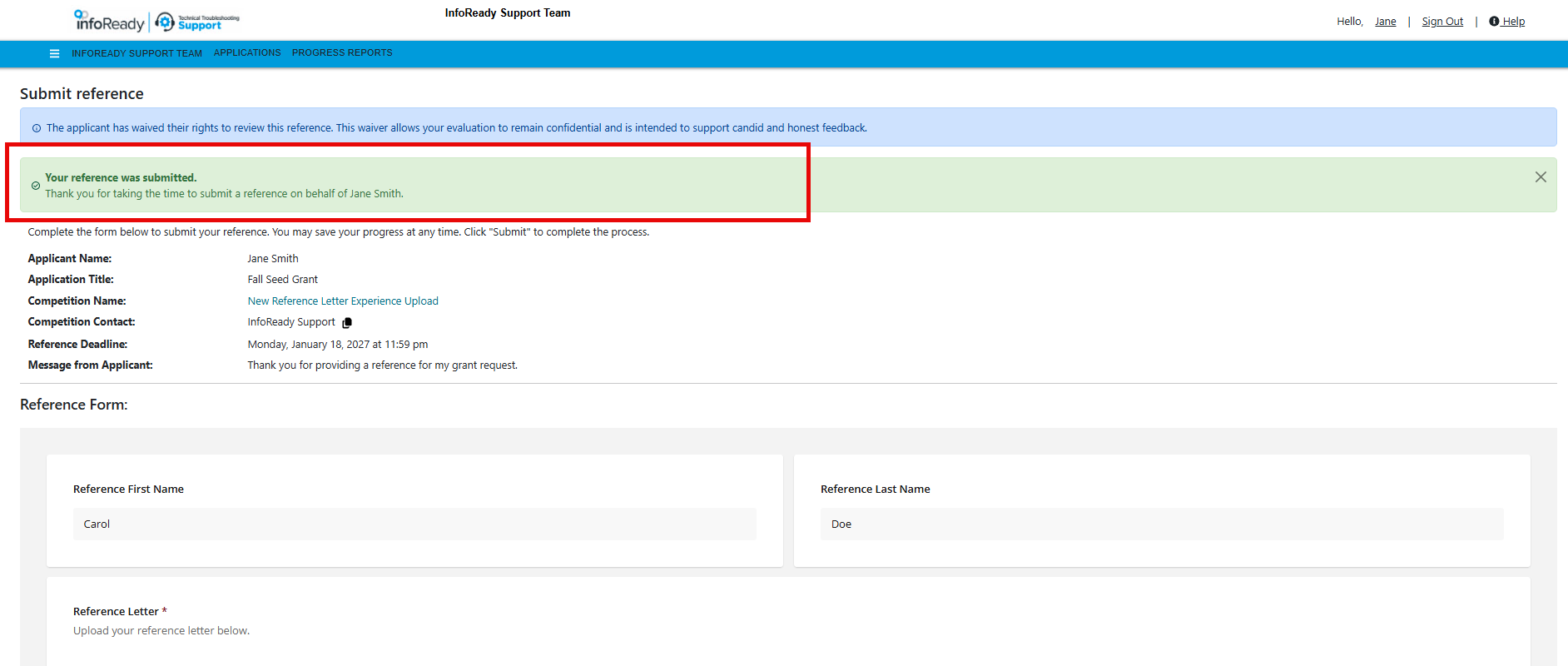
You'll know you have completed the process when you see the following message highlighted in green:
You can also forward the reference request email to another person if you want that person to submit the letter on your behalf. For example, a faculty member may request that a department administrator upload the letter on the faculty member's behalf.
Have more questions about this topic? Go to the Community Forum to pose the question to other users or submit a support ticket to InfoReady.