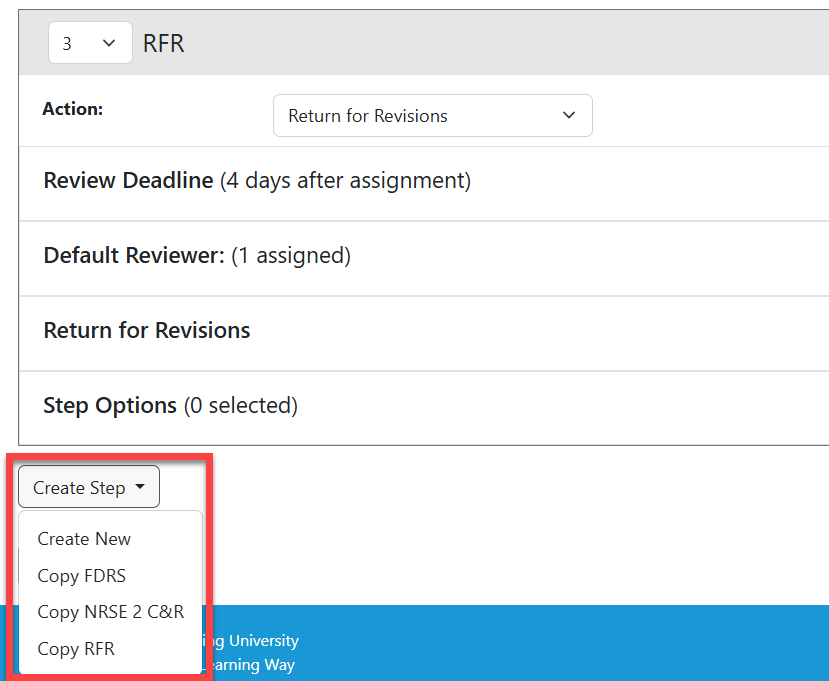
Copying is useful when multiple routing steps have similar configurations, such as the same review questions, instructions, or rating scales. It can save time and reduce the need to recreate the same setup. As you create routing steps, you will have the option to duplicate any prior step:
- Click the Create Step dropdown.
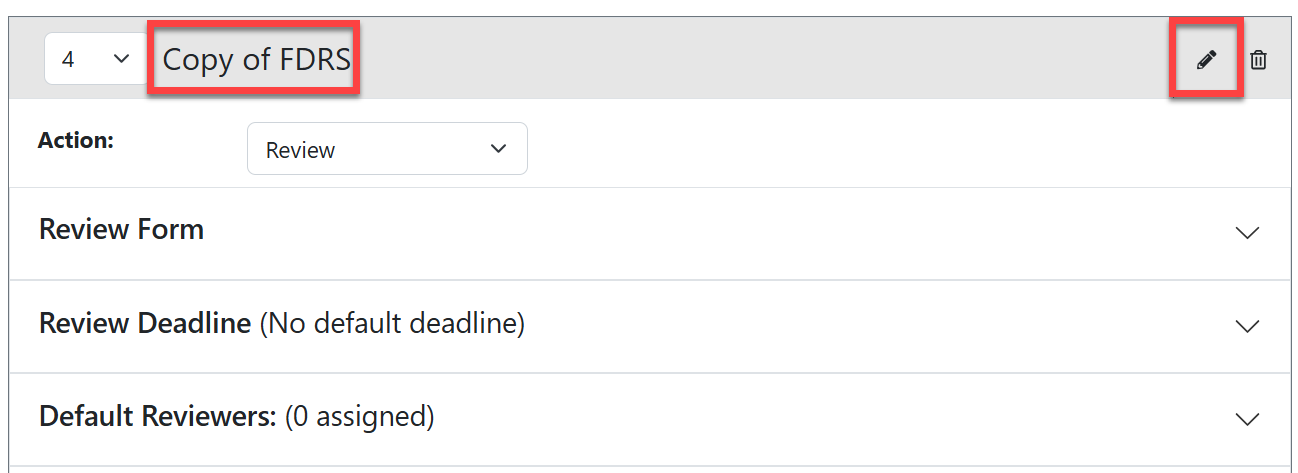
- Select "Copy {step name}" to start a new step with the same configuration.
- Make sure to re-name the copied step to distinguish it from the original.
Important Tips:
- Routing Steps can only be copied within the same opportunity. The new experience allows administrators to copy an existing Routing Step while setting up the same opportunity. Routing Steps cannot currently be copied from one opportunity to another.
- Copied Routing Steps can be edited. Once a step is copied, you can modify it to meet the needs of the new review stage, including adding, removing, or changing questions and other configuration settings.
- Changes to a copied step do not affect the original. The copied step serves as a starting point for the new step. Any changes made to the copy are independent of the original Routing Step.
- Use copying to create similar review stages. Copying can save time when creating multiple review stages that share a common structure but require some differences.
- Applicant Driven Routing Steps cannot be copied. These steps are based on the setup configured in Requirements. If additional questions are needed in an Applicant Driven Routing Step, they must be configured manually.
Have more questions about this topic? Go to the Community Forum to pose the question to other users or submit a support ticket to InfoReady.