Note: The feature below is currently only available within the Requirements page (application form). We plan to introduce this functionality into Routing Steps (review form) and Progress Reports at a later date.

To see if this feature is a good fit for your process, check out: Electronic Signatures: Tips & Reminders
TABLE OF CONTENTS
Overview
Electronic signature (e-signature) refers to any electronic process that indicates acceptance of an agreement or record with these requirements:
- Intent to sign
- Consent to do business electronically
- Opt-out clause
- Signed copies
- Record retention
Based on these requirements, InfoReady has developed a specific experience for this purpose that involves:
- Tenant-level disclosure text that can be modified per the institution's electronic signature policy
- A tool with the option for users to enter signature via a text field, upload, or signature pad
- The option for users to not consent
- The ability for users and administrators to download the signature with timestamp as part of the PDF
- Prohibiting edits to the application without allowing the user re-sign
- An audit trail within the application activity log that records any time the e-signature needs to be resigned (e.g., when the application is returned)
Tenant-Level Disclosure Text
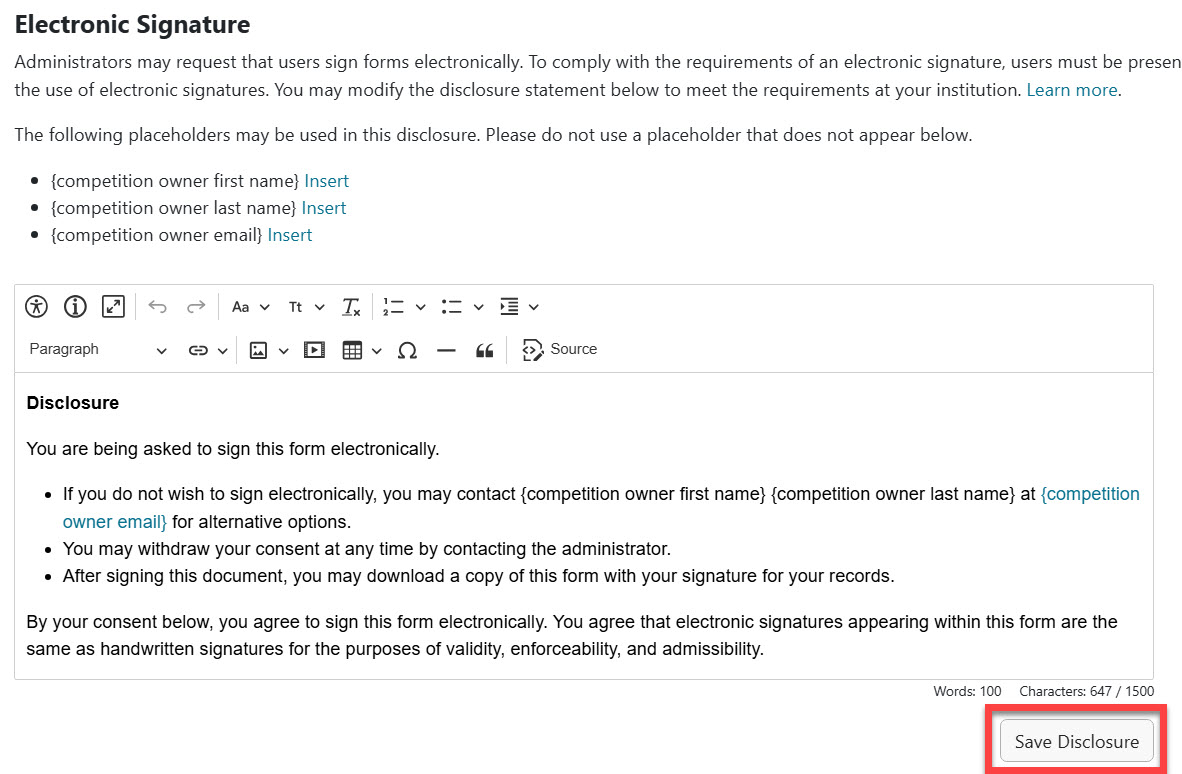
Once the e-signature feature is enabled, top-level Administrators can view and modify the disclosure text from the Admin tab > Configure Platform section.
- The language will appear on any form where Administrators choose to add an e-signature. Therefore, it should be generic enough to work for any form for any process used throughout your InfoReady site.
- The max character count is 1500.
- Admins may utilize competition owner first name, last name, and email address merge fields within the statement.
Adding the Tool to a Form
- The tool is available for any Admin to use on any of their competitions.
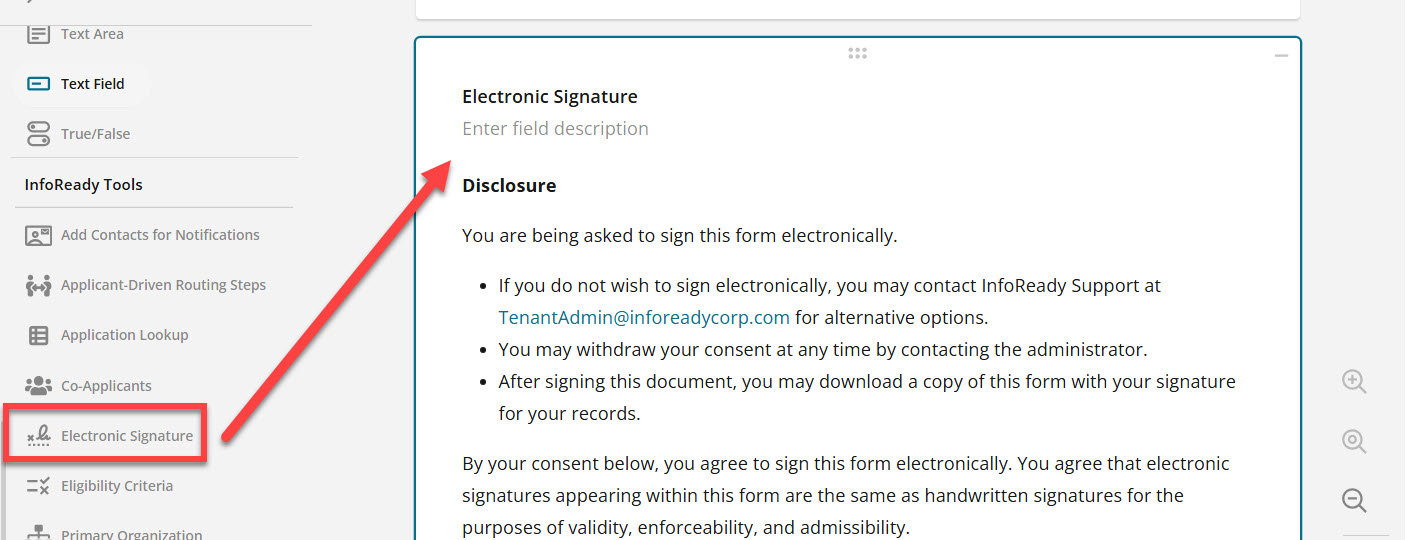
- In the InfoReady Tools section of the toolbar, select Electronic Signature.
- The tool can be placed anywhere on the form, and no additional configuration is needed.
- Instructions may be added directly below the label. All other labels, instructions, and fields cannot be edited.
End User Experience
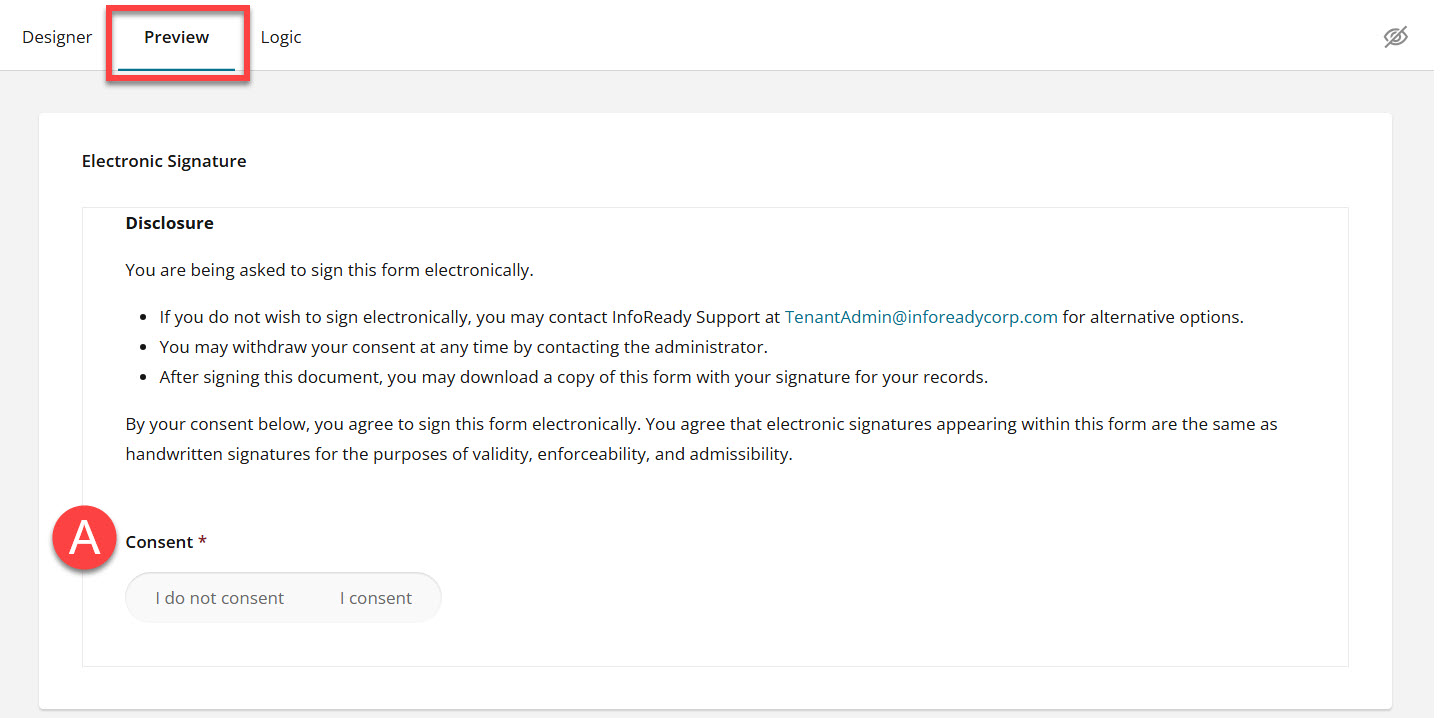
To see what the experience will be like for the applicant, use the Preview tab:
- A - Users will only see the disclosure text and Consent question initially.
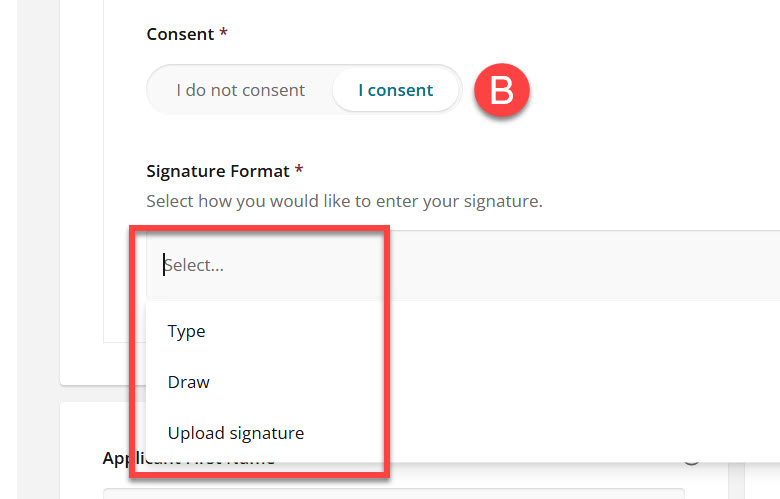
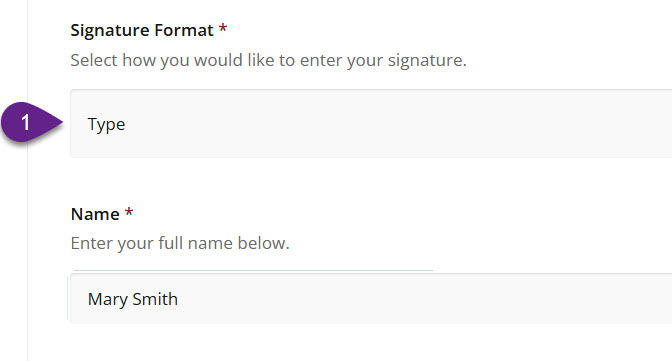
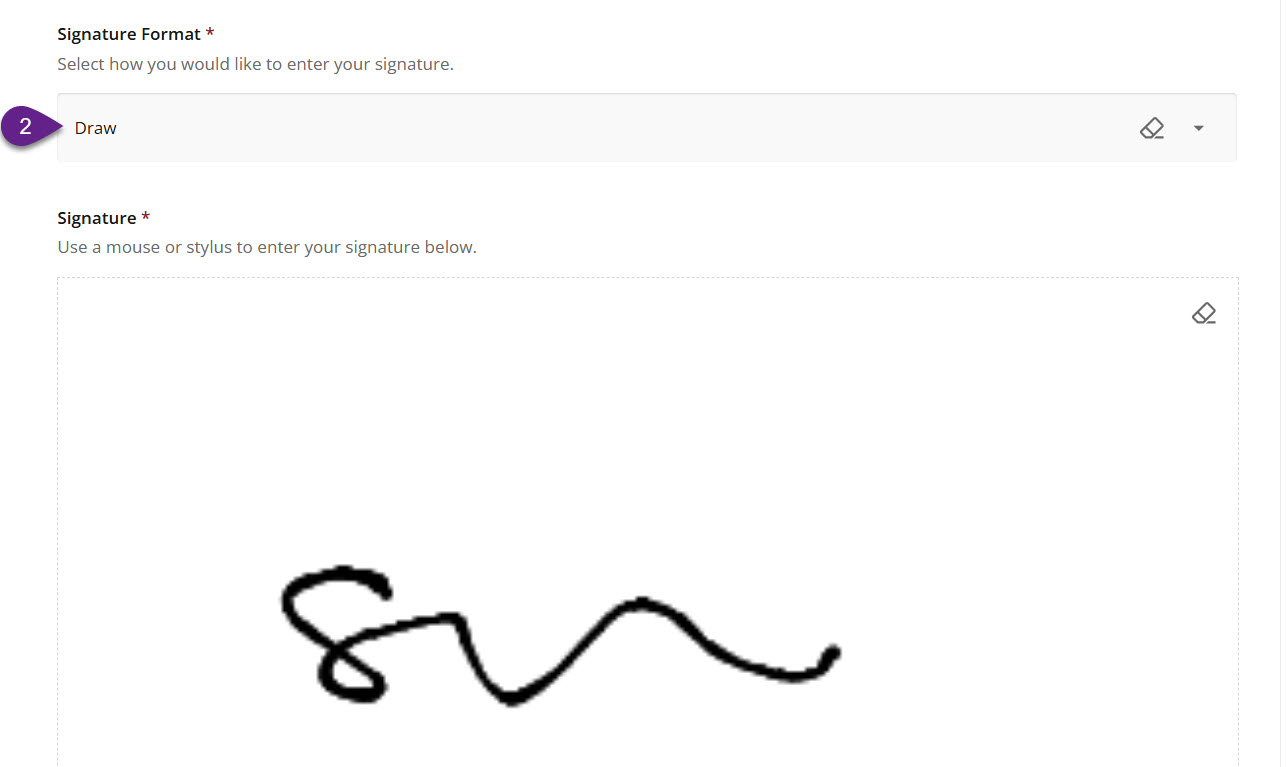
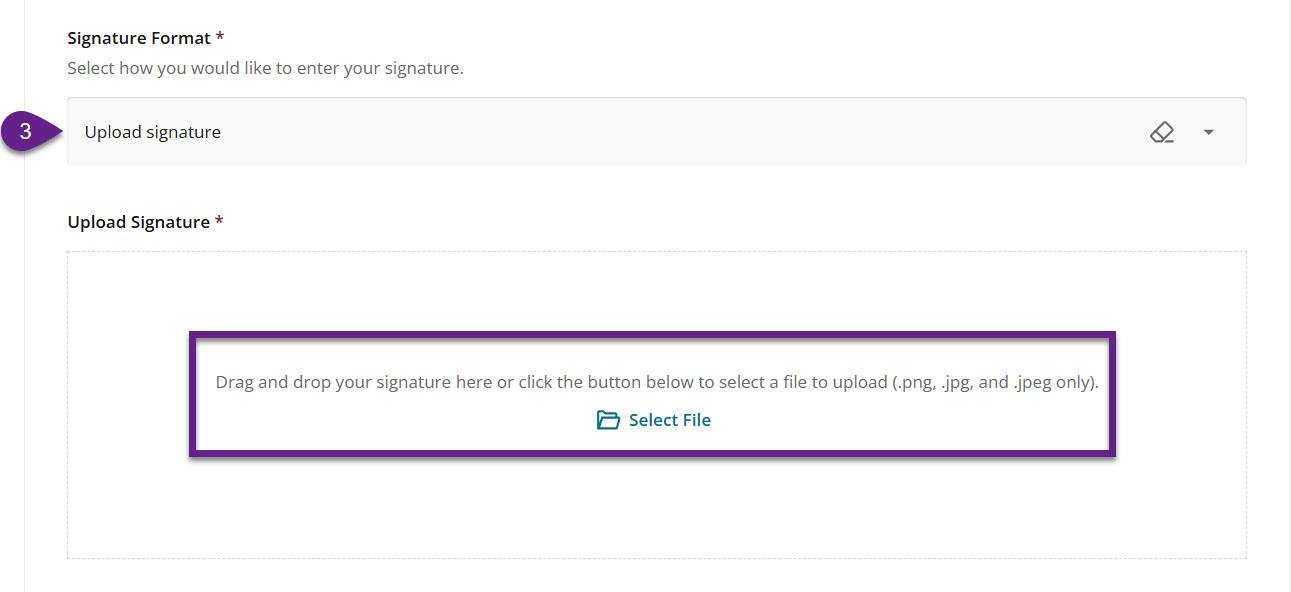
- B - Once they select I consent, they can choose their signature format.
- 1 - Type: User types in their full name.
- 2 - Draw: User uses mouse or stylus to sign.
- 3 - Upload: User can upload .png, .jpg, or .jpeg file of their signature.
Admin Experience
Data Grid
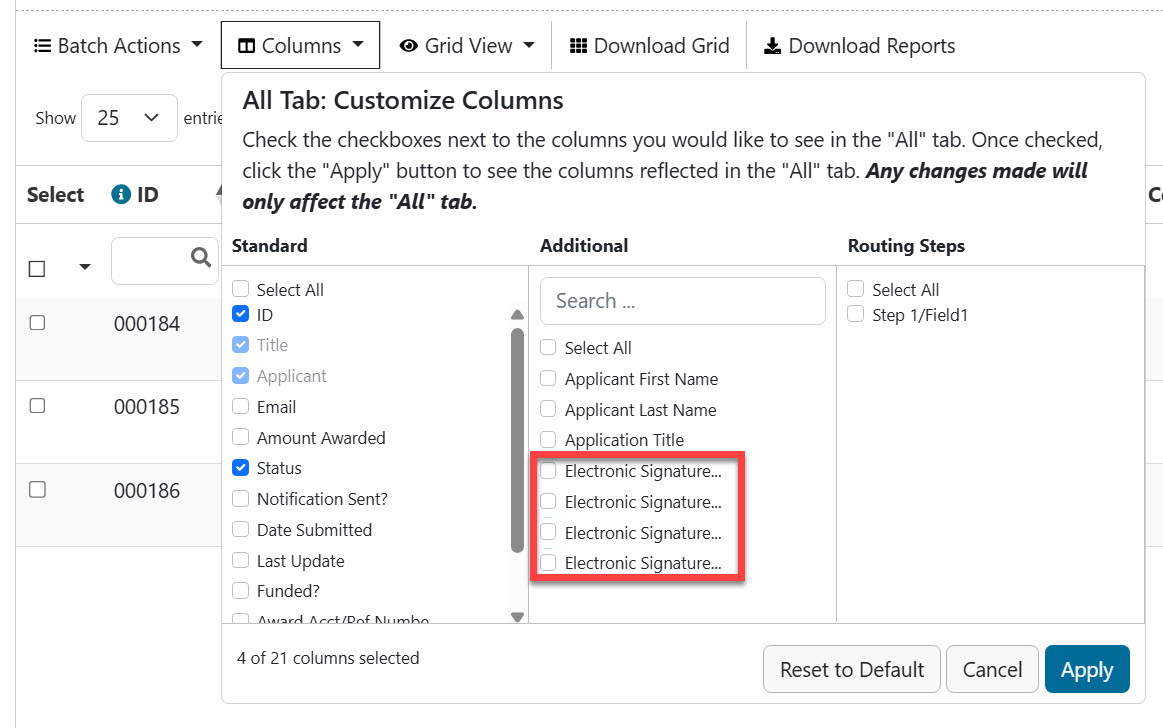
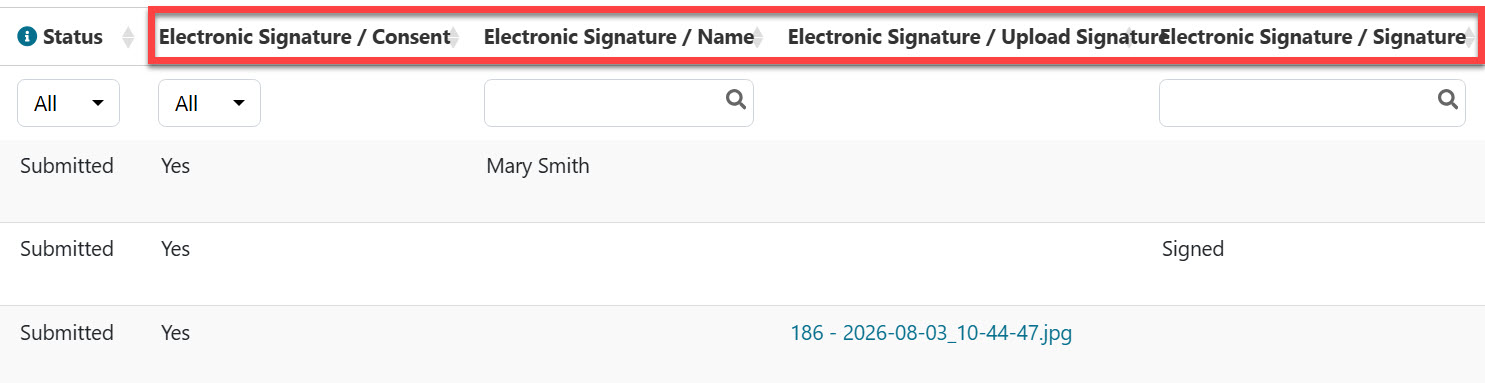
- Responses show within the Additional columns.
- Each consent type appears as its own column.
- For drawn signatures, the Grid will simply show "Signed".
Excel Downloads
- As the Grid itself, each consent type will show as its own column.
- The same format is used for the Download Grid and Download Reports options.

PDFs
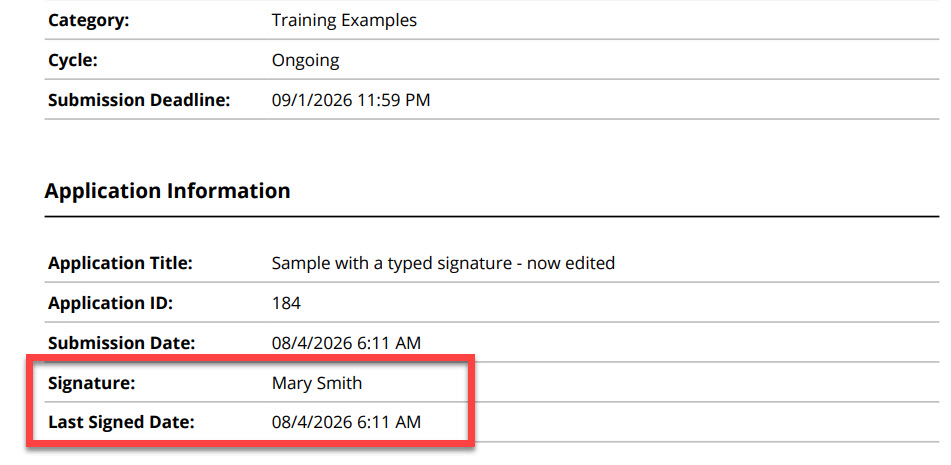
- Applicants and Admins will always see a timestamp of when the application was last signed within the packet.
- If an application is returned for edits, the timestamp will be updated to reflect a new signature.
Editing Applications
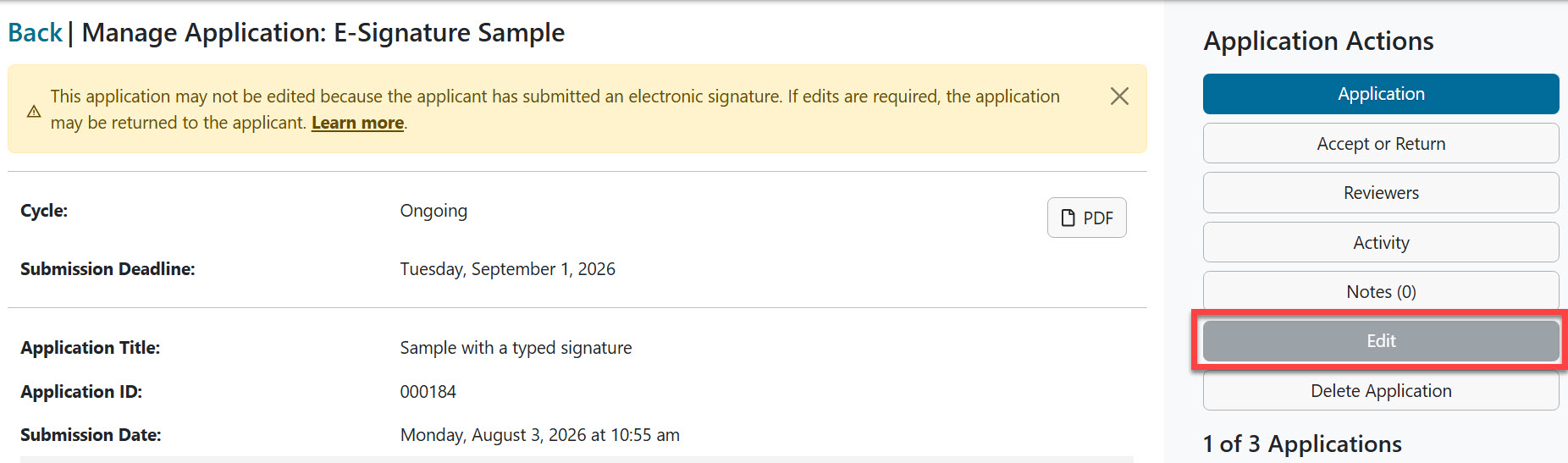
- Applications with electronic signatures cannot be edited by Administrators.
- If edits are required, the application may be returned to the applicant using either the base Return option or a Return for Revisions Routing Step. Learn more.
Activity Log
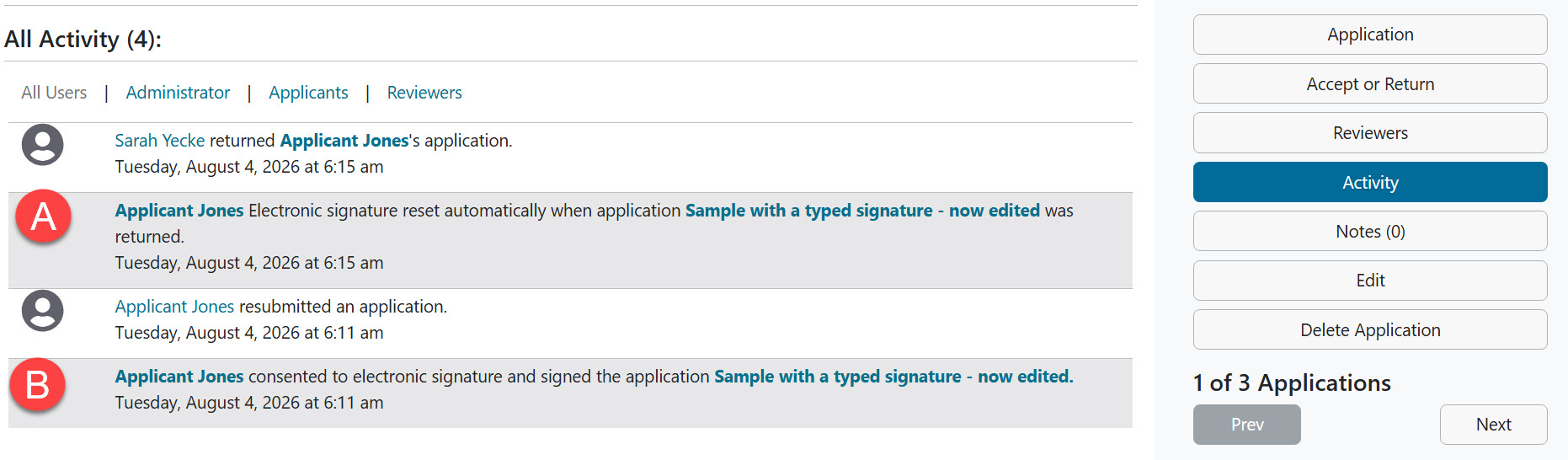
- A - If the application is returned, the activity log records that the signature is automatically reset.
- B- When the applicant re-submits, the activity log updates to include the updated consent with timestamp.
Have more questions about this topic? Go to the Community Forum to pose the question to other users or submit a support ticket to InfoReady.