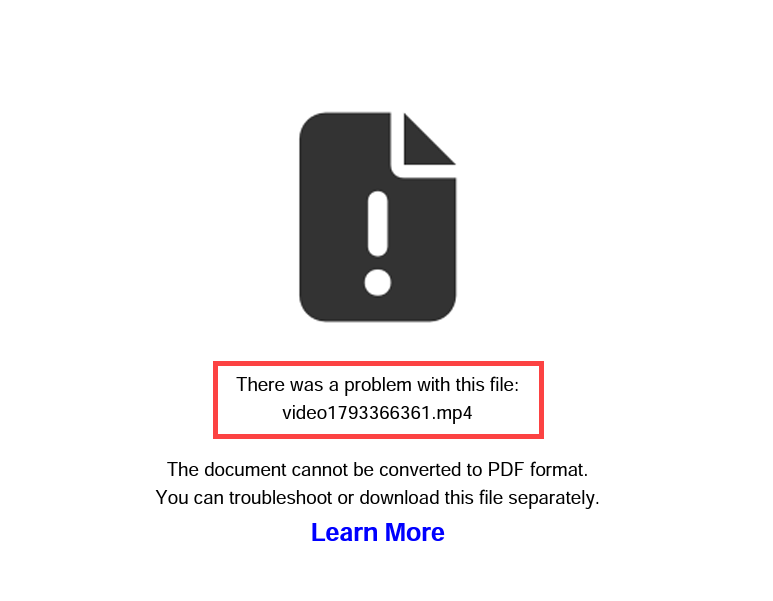
After downloading one or more (i.e., a batch) applications as a PDF and viewing the full packet, users may see a page as shown below. This page appears in the packet as a placeholder document for a file that is cannot be rendered in the combined PDF.
Common Unsupported File Types
- .zip
- Audio or Movie files (.mp4, .msg, etc.)
- HEIC (treated as movie file)
- PDF files with embedded digital signatures
*Note: Current Adobe functionality prevents files of these types from being combined with other PDFs. This is why they are not able to be added to the InfoReady-generated PDF packet.
Troubleshooting by User Role
Administrators
- If not clear from the placeholder document, scroll to the Table of Contents (first page) of the packet to determine the problematic file.
- Please request an updated file from the appropriate individual (i.e., applicant for an application file, reference letter writer for a letter).
- Return to the individual application view and edit the application to replace the file.
Reviewers
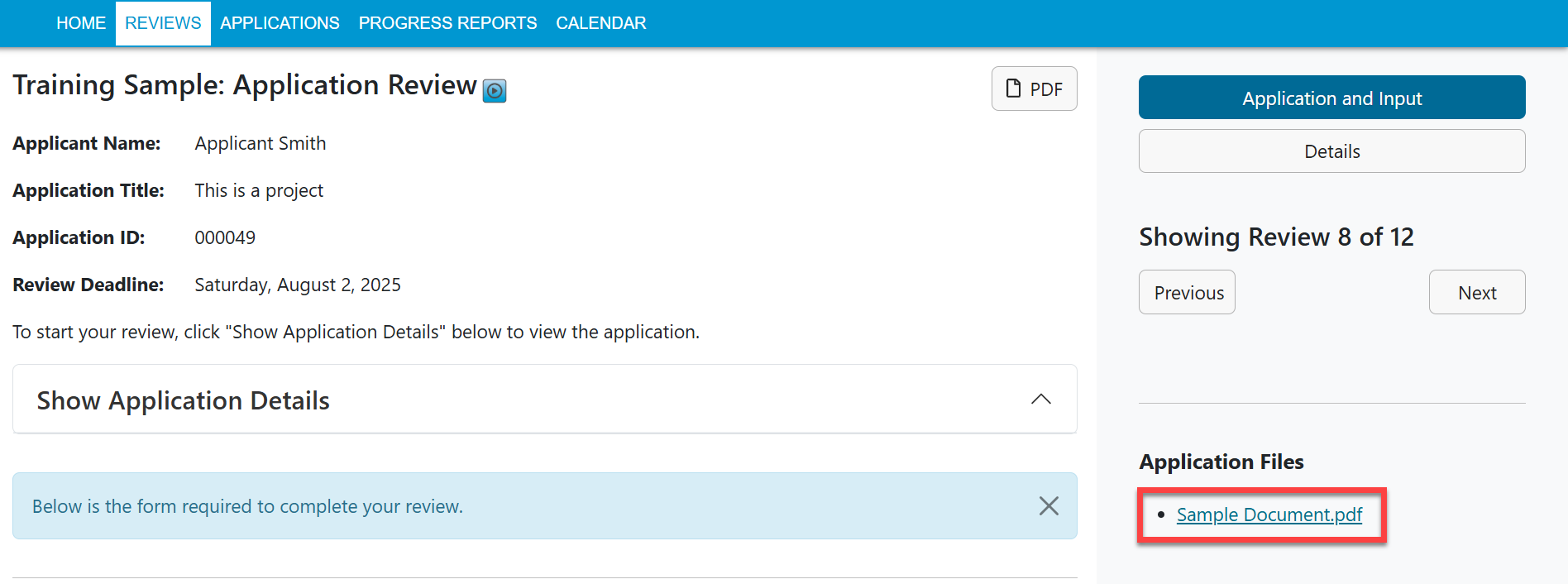
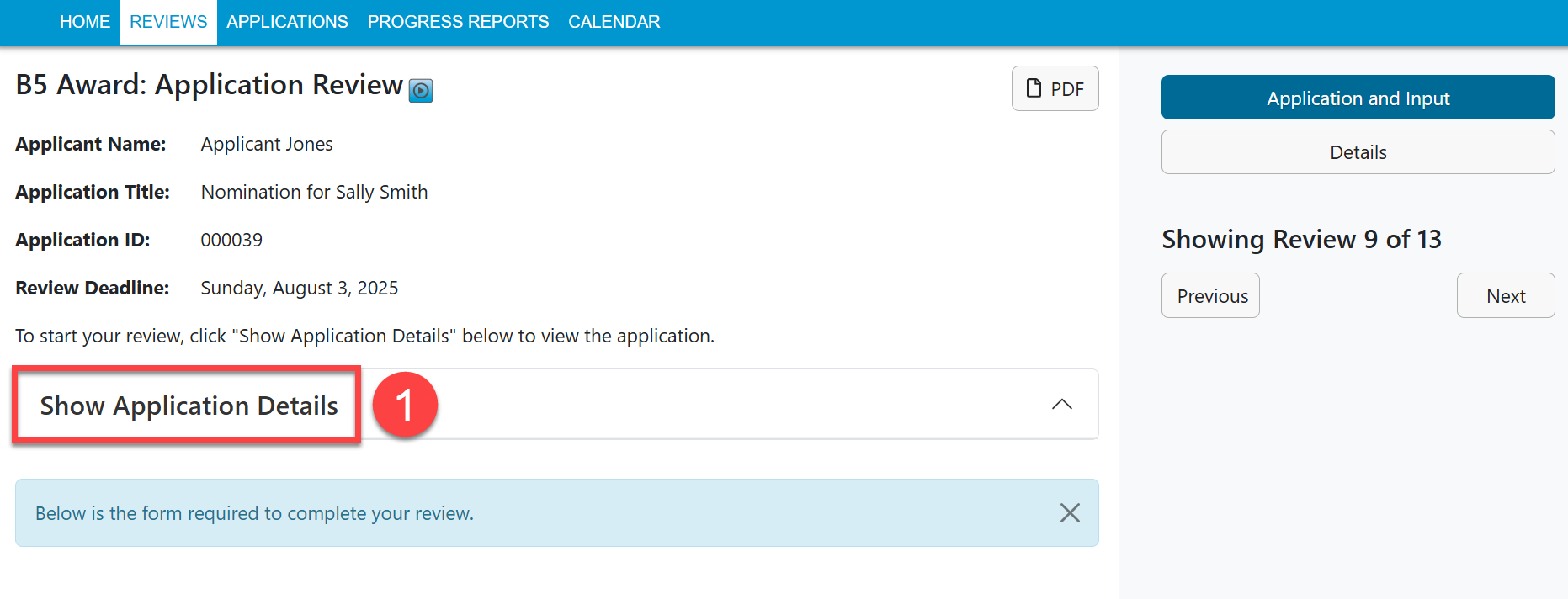
Return to the Application and Input screen in InfoReady and download:
- Application Files - (e.g., budget, CV): On the right side of the screen
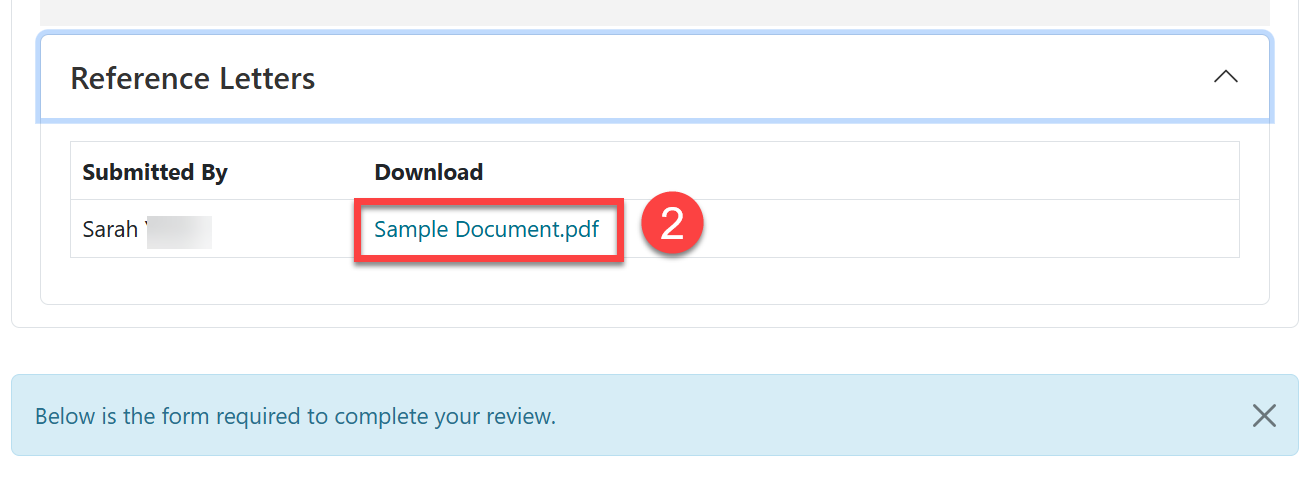
- Reference Letters - Click Show Application Details link and then scroll down to the Reference Letters section:
- If you're still unable to view the file, contact the Administrator listed on the Details page, or submit a ticket.
Applicants
Download the file separately:
- Application Files - (e.g., budget, CV): On the right side of the screen
- Reference Letters - Contact the Administrator listed on the Details page.
- If you'd like to replace any file, contact the Administrator listed on the Details page.
- Best Practices for Uploading Documents
Have more questions about this topic? Go to the Community Forum to pose the question to other users or submit a support ticket to InfoReady.