The ability to hide applicants' identity from reviewers varies depending on which base template is used to create the opportunity.
Hiding the Applicant's Name
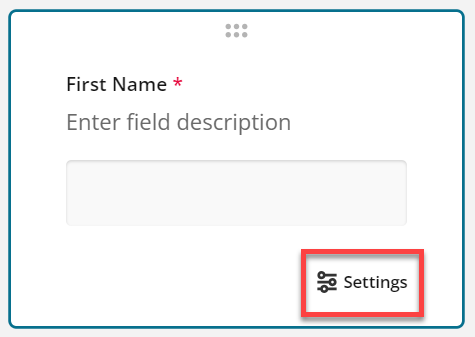
- On the Requirements page, open the Settings of the First Name and Last Name fields.
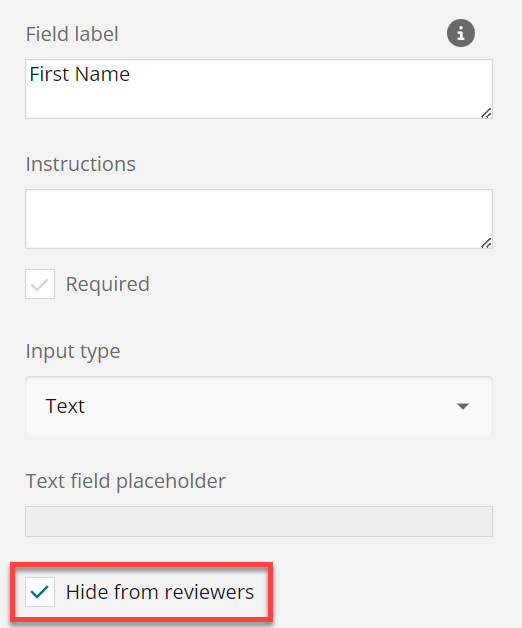
- For each field, check the Hide from reviewers box.
Hiding Other Fields
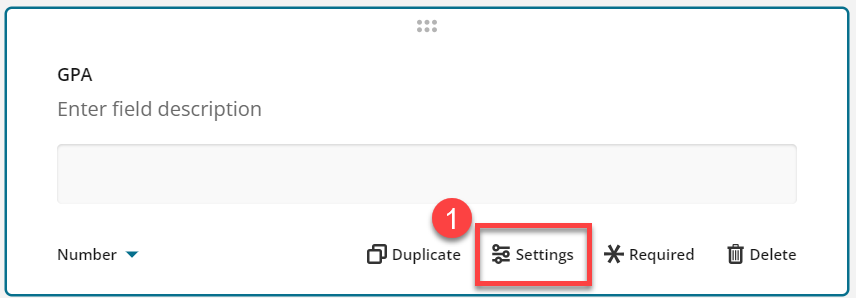
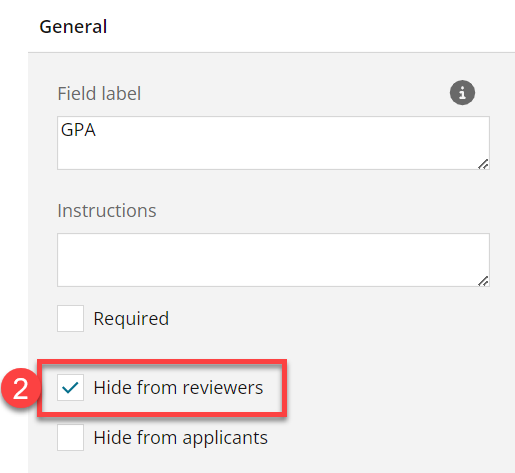
- Check the Hide from reviewers box in the Settings area of the field or file upload. (More info here).
- Good option for hiding demographic information, or questions/files irrelvant to review process.
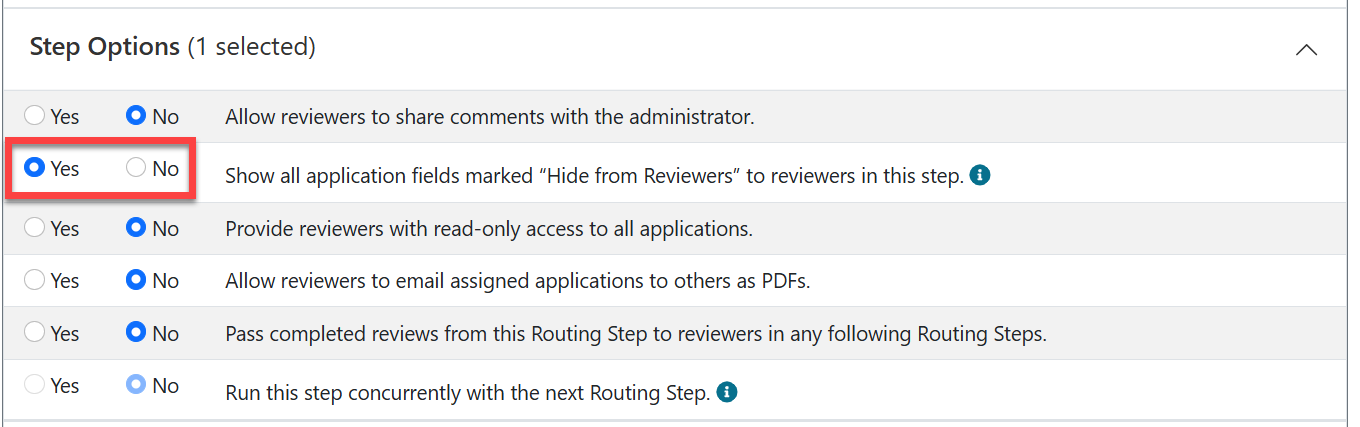
When fields are hidden from reviewers, by default, they are hidden for ALL routing steps. If administrator would like to show the hidden information to reviewers in specific steps only, they can select this option under the Routing Step Options:
Have more questions about this topic? Go to the Community Forum to pose the question to other users or submit a support ticket to InfoReady.