In the Settings panel, the Validation area allows you to set limits on applicant responses. It is available in three question fields:
- Rich text field - Can set character or word limits
- Text field - Can set character limits only
- Text area - Can set character limits only
In the rich text field:
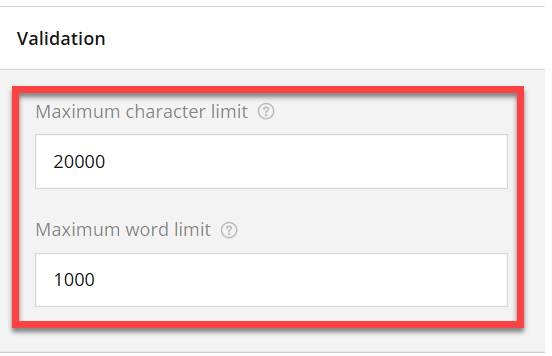
- The default character limit shows as 20,000, which is the maximum allowed. Enter a specific number to limit applicants to that number of characters (including spaces).
- The default word limit shows as 1,000 words, which is the maximum allowed. Enter a specific number to limit applicants to that number of words.
In text fields and text areas:
- the default is set at -1, meaning the maximum amount of characters is allowed (20,000).
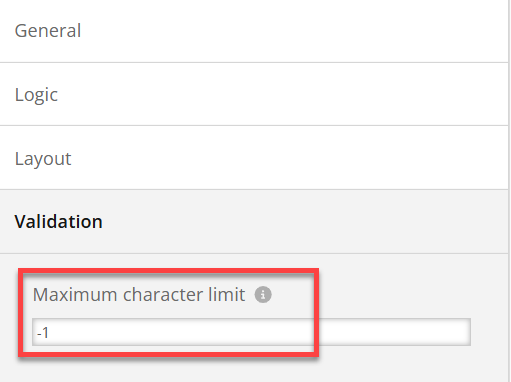
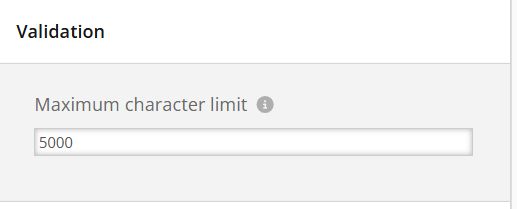
- To set a limit, simply type in the number of characters.
Applicant Views
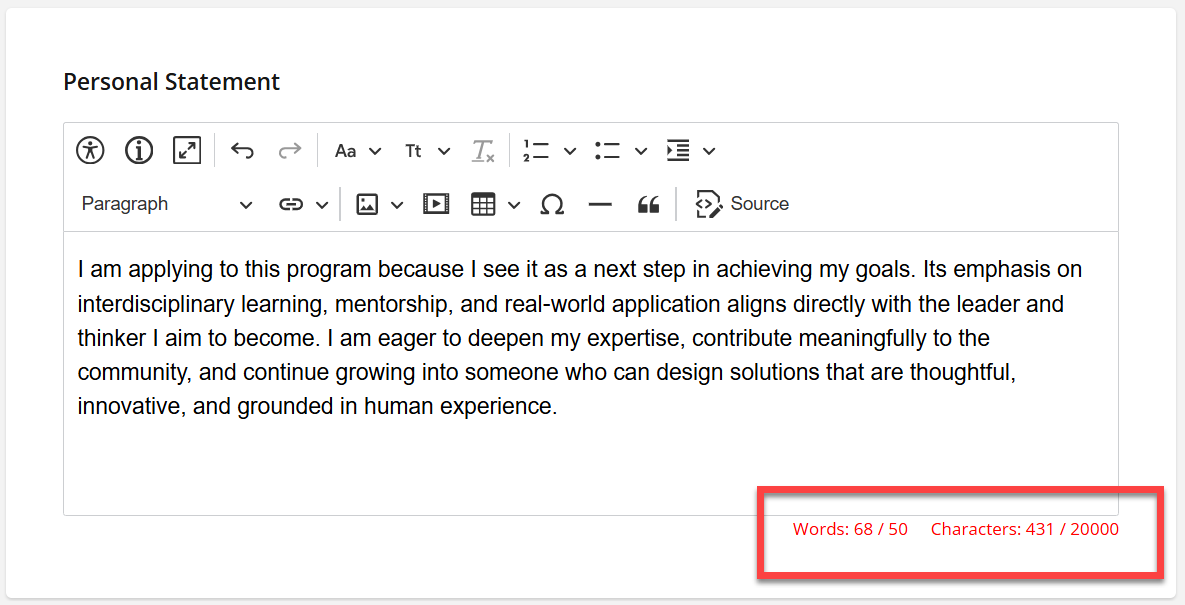
- Applicants will see a counter in the lower right corner of the field as they type.
- If the limit is reached:
- Rich text field - The counter text will turn red and submission can't occur until the limit is not exceeded. Note that if both character and word limits are set, as soon as one limit is reached, the entire counter will turn red (as shown below).
- Text fields or text areas - The text will be truncated at the last character allowed.


Have more questions about this topic? Go to the Community Forum to pose the question to other users or submit a support ticket to InfoReady.