Notes:
- This feature requires additional configuration by the InfoReady team. Contact your account manager for more information.
- Only 1 draft can be created via this feature per user per competition (even if the competition allows multiple applications per applicant).
- Only the user's first and last name will populate into the draft application.
- If you'd like to also collect their email address automatically, add is as a dynamic profile field on your Requirements page: Dynamic Profile Fields
- No notifications are sent to the users automatically. See the note in Step 7 below if you'd like to email applicants with drafts directly from InfoReady.
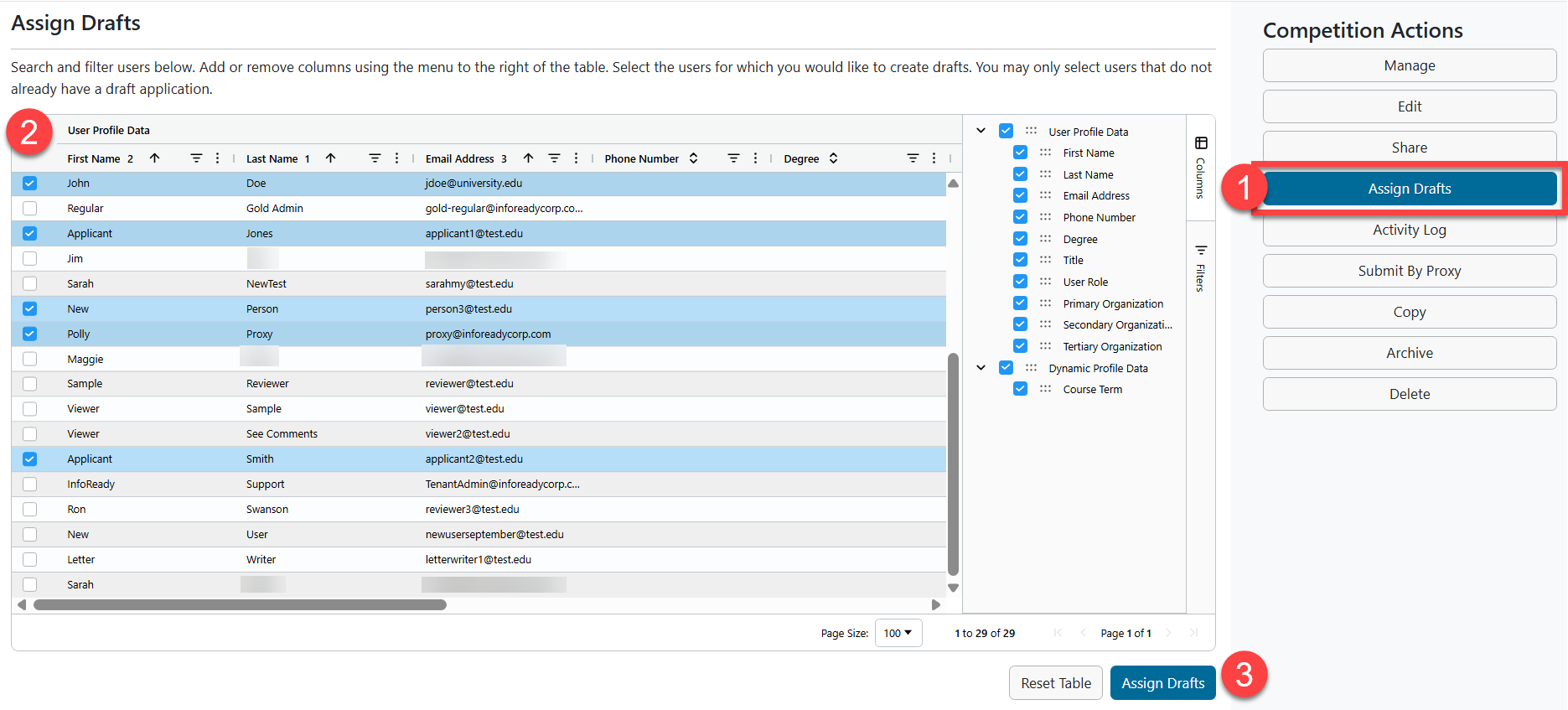
1. Click Assign Drafts in the local navigation menu to the right.
2. Select the users for whom you need to create drafts.
3. Click Assign Drafts in the lower right corner.
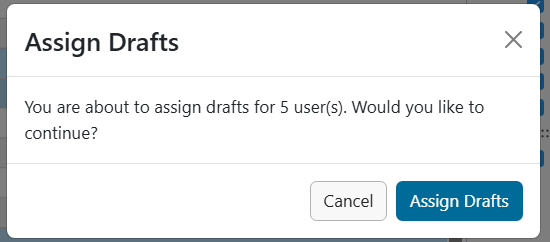
4. The modal will confirm the number of drafts you are about to assign. Click Assign Drafts to complete the action.
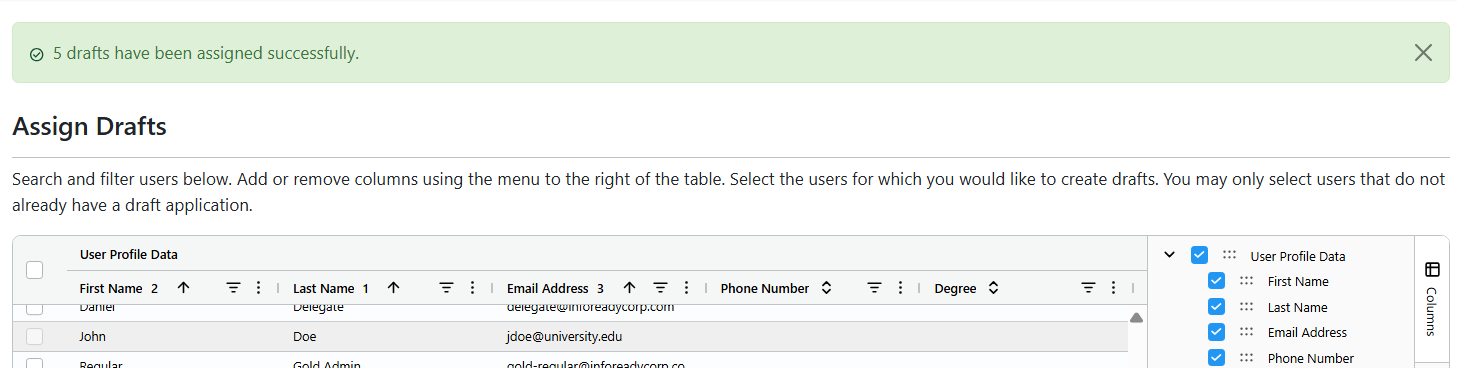
5. When the assigning is complete, you will see a green confirmation message at the top of the screen.
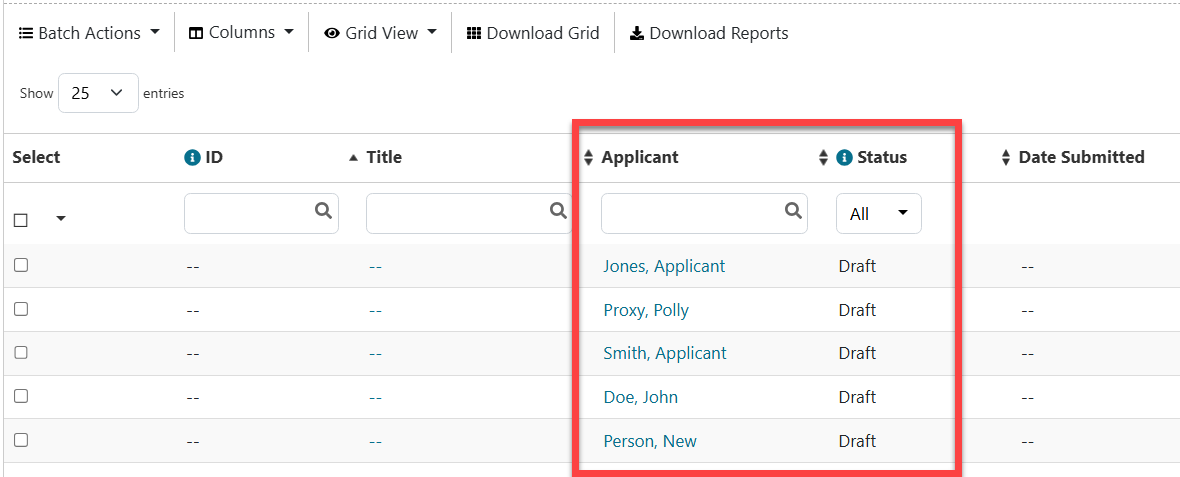
6. Click Manage in the local navigation menu to the right to return to the Data Grid and see the drafts.
7. If you need to notify applicants that their drafts have been created, utilize the Batch Email Applicants feature to customize and send a message directly from InfoReady. Learn more: Batch Email Applicants
Have more questions about this topic? Go to the Community Forum to pose the question to other users or submit a support ticket to InfoReady.