After July 1, 2026, you can no longer create new competitions with the Funding or General templates. (Bulletin board opportunities are unaffected by this change).

However, you can still:
- Continue to manage Funding and General template competitions (e.g., assign reviews, make final decisions, manage progress reports, etc.).
- Access and extract data from Funding and General template competitions.

Use the info below to help transition existing opportunities and templates to make the most of the upgraded capabilities!
Table of Contents
- FAQs
- Which things should I upgrade? Which things do I NOT have to upgrade?
- Which parts of my competition or template will copy over? Which do I have to rebuild from scratch?
- How will I know which questions and features were in my legacy competition or template so I don't forget to add them in the new one?
- What if I have a legacy competition in progress after July 1? Do I need to upgrade that one?
- I have a lot of competitions and templates to migrate. Where should I start?
- Steps to Transfer
- Interpreting the Migration Tool Fields Report
- Tips for Rebuilding Forms in FDT
FAQs
Which things should I upgrade? Which things do I NOT have to upgrade?
- You should migrate your templates, shared templates, or sitewide templates that were made with either the Funding or General InfoReady template.
- You do NOT need to upgrade currently launched or archived opportunities.
- If you have a current draft that will be launched prior to 7/1, you don't need to upgrade it. If you have a draft you started from the Funding or General template, you will have to upgrade it to FDT to launch it.
Which parts of my competition or template will copy over? Which do I have to rebuild from scratch?
- Details, most Routing Steps, and Notifications pages will transfer in their entirety.
- Fields from the Requirements page (i.e., application form) will not transfer. You will need to build this page by adding any questions, file uploads, and InfoReady tools (e.g., Applicant Driven Routing Steps, Reference Letters) using the new form builder.
- If you used Build my own Form routing steps, you will rebuild those using the Form Designer Routing Step.
- Progress report amounts and titles will transfer to get you started, but you will have to add specific fields and/or file upload options.
- Tip: In the upgraded experience, you can copy progress reports. So, if you need the same report for multiple years, build it once and then quickly replicate by copying for additional years.
How will I know which questions and features were in my legacy competition or template so I don't forget to add them in the new one?
- You will be able to download a detailed Excel report with data from the Requirements, any Build my own Form routing steps, and Progress Reports pages, including field names, instructions, and any additional settings (e.g., minimum and maximum responses, character limits, etc.).
- You can also always reference your original competition or template. Some Admins prefer to open that in a different tab as they're building their new form(s).
What if I have a legacy competition in progress after July 1? Do I need to upgrade that one?
- No! You'll be able to continue to manage existing legacy competitions even after July 1. However, the next time you need to create a new version of that legacy process (i.e., the next cycle), you'll have to upgrade at that time.
- Admins will be able to perform all their standard actions like assigning reviewers, downloading reports, and managing progress reporting within legacy competitions even after July 1.
I have a lot of competitions and templates to migrate. Where should I start?
- There is no "right" or "wrong" approach to take, but we recommend starting with any of your most commonly used templates, especially if they are shared with other Admins on your site.
- Once you've upgraded a legacy template entirely, we recommend deleting the old one.
Steps to Transfer
Upgrading competitions
- Open any competition made with the Funding or General template.
- Click the Copy button on the right side of the page.
- Click the Upgrade to Form Designer button to migrate your competition.
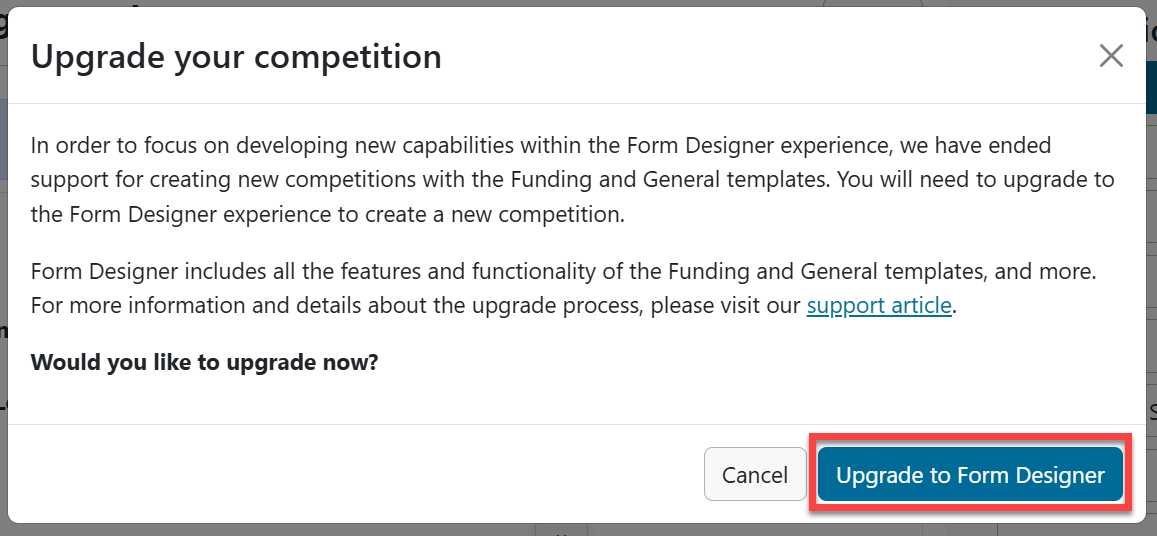
- Depending on how complicated your competition is, it may take a few moments to transfer all items.
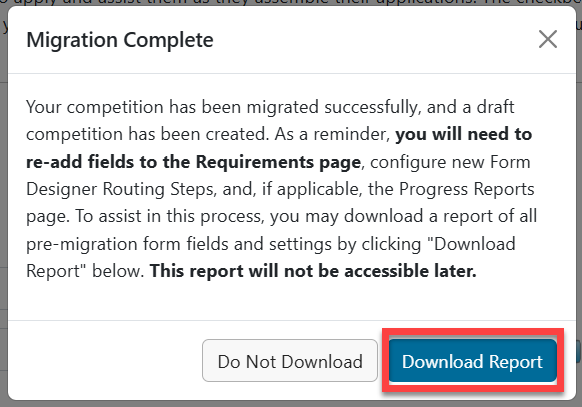
- When the draft has been created, you'll see the message below on the screen.
- Click Download Report to access the Excel report of all fields.
Upgrading templates
My Templates or Shared Templates
- From the Create tab, select the template you'd like to upgrade.
- In the modal, select Upgrade to Form Designer.
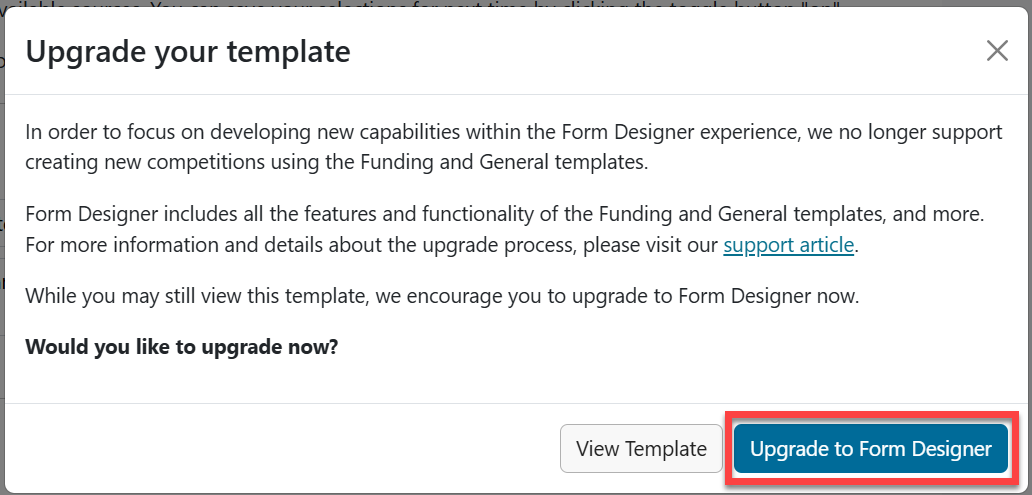
- Depending on how complicated the template is, you may need to wait a minute for it to migrate.
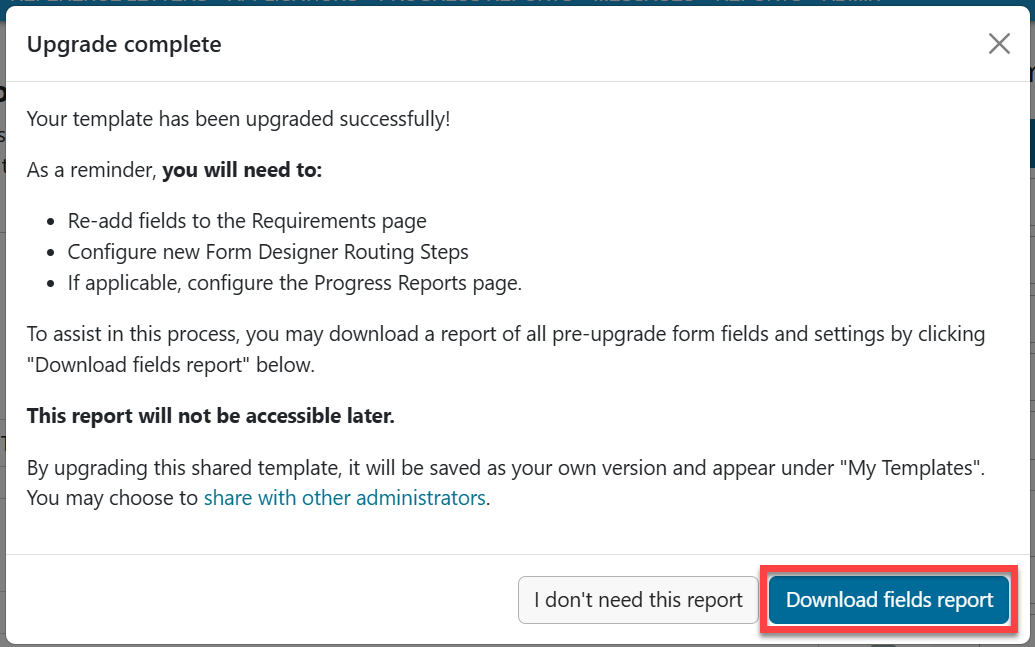
- Once it's complete, you'll see a modal on the screen reminding you which pieces need to re-created.
Sitewide Templates
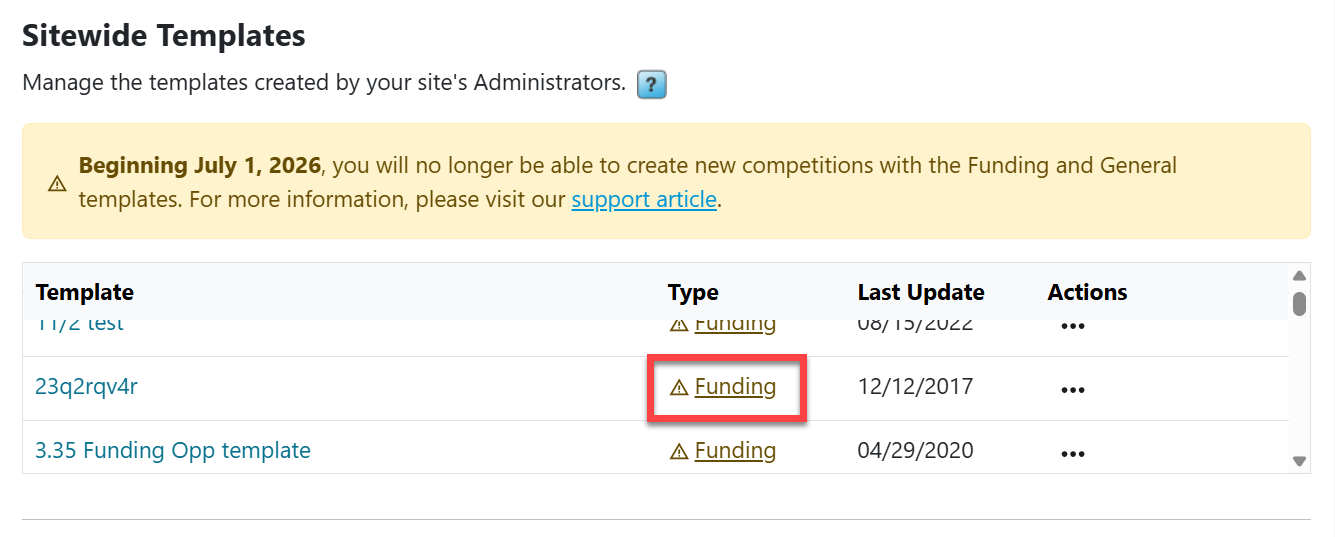
- Only the highest-level Administrators can upgrade these templates from the Admin tab > Configure Platform section. Scroll down to the Sitewide Templates table.
- Any legacy template will have an alert icon. Click the type next to the template name to begin the migration process.
- As with My Templates or Shared Templates described above, in the modal, click Upgrade to Form Designer, and then you may download the fields report.
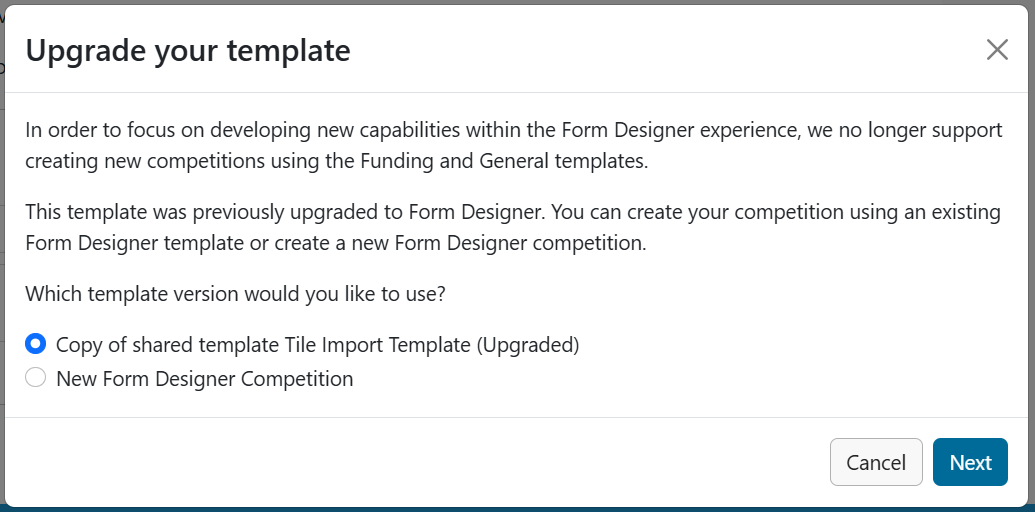
Note: If the template has already been migrated, you may see a modal with additional options as below. Any already upgraded versions of the template will appear in alphabetical order. If two templates have the same name, you may need to open each to compare what changes were made. Once the template is opened, the one with the larger ID number was created later.
Interpreting the Migration Tool Fields Report
Tabs
- Requirements - Application form fields
- Routing Steps - Only if you used Build my own Form routing steps. The tab(s) will be labeled with the routing step name(s).
- Progress Reports - Each progress report will have a separate tab.
Columns
- Section Name (progress reports only) - Grouped questions in a specific area, which in FDT is Sections
- Field Name - Question label, which in FDT is Field label
- Type - Base question type (see chart below)
- Required? - Yes or blank (not required), which in FDT is denoted by a red asterisk
- Notes or Instructions - There are many ways to add instructional text in FDT: Adding Instructions. Some fields will also have notes about how the question was used in the legacy template.
- Choices - For multiple response questions, all choices are listed with semi-colons in between
Field Type Chart
- Some features and question types from your legacy competition may have identical names in FDT (e.g., File Upload, Primary Organization).
- The chart below focuses on field types you may see in the export that could be re-built in a variety of ways using FDT.
- Click any of the linked text to explore and compare field types.
| Legacy question type listed on the report | FDT field(s) to explore/use instead |
| File Upload | File Upload Specifying File Extensions |
| Date | Date (Field Type) |
| Multiple Choice | Multiple Choice Dropdown Single-Choice Matrix |
| Multiple Select | Checkboxes |
| Text Field | Text Field Dynamic Profile |
| Rich Text Area | Rich Text Field Text Area Validation (Set Character Limit) |
| Number | Number (Field Type) |
| Yes/No | True/False (Yes/No) |
| (Build it yourself) | Acknowledgment Statement |
| Add Contacts for Notifications Primary Organization Co-Applicants Reference Letters Applicant-Driven Routing Steps Application Keywords | InfoReady Tools |
| Comments to Administrator | Text Area with Hide from Applicants box checked |
Tips for Rebuilding Forms in FDT
- Instructionsfields are the easiest way to add longer blocks of instructional text.
- For file uploads, you can specify file extensions to require a certain format, like .pdf.
- Additional features that appeared at the bottom of the legacy Requirements page are all grouped together as InfoReady Tools.
- Legacy forms always included an "Add Other Email Addresses for Notifications" feature by default. In FDT, administrators can choose to add this to the form or not: Add Contacts for Notifications.
- Because Applicant-Driven routing steps exist on both the Requirements and Routing Steps pages, they will not transfer and will need to be reconfigured in the new draft.
- If you need a blinded review process, make sure to hide fields appropriately.