Beginning July 1, 2026, you will no longer be able to create new competitions with the Funding or General templates.

We will be hosting a monthly webinar dedicated to this transition, with alternating sessions for basic and advanced topics. Sign up here.

However, even after 7/1 you will still be able to:
- Continue to manage Funding and General template competitions (e.g., assign reviews, make final decisions, manage progress reports, etc.).
- Access and extract data from Funding and General template competitions.

Use the info below to help transition your existing opportunities and templates now to make the most of the upgraded capabilities!
Table of Contents
Key Points
- You can migrate draft, launched, and archived competitions.
- Details, most Routing Steps, and Notifications pages will transfer in their entirety.
- Fields from the Requirements page (i.e., application form) will not transfer.
- If you used Build my own Form routing steps, you will rebuild those using the Form Designer Routing Step.
- Progress report amounts and titles will transfer to get you started.
- You will be able to download a detailed Excel report with data from the Requirements, any Build my own Form routing steps, and Progress Reports pages, including field names, instructions, and any additional settings (e.g., minimum and maximum responses, character limits, etc.).
- If you'd like to carry over existing draft applications from a legacy competition to the new Form Designer version, you can start drafts for the applicants using the Submit by Proxy functionality. Learn more.
Steps to Transfer
- Open any competition made with the Funding or General template.
- Click the Copy button on the right side of the page.
- Click the Get started with Form Designer button to migrate your competition.
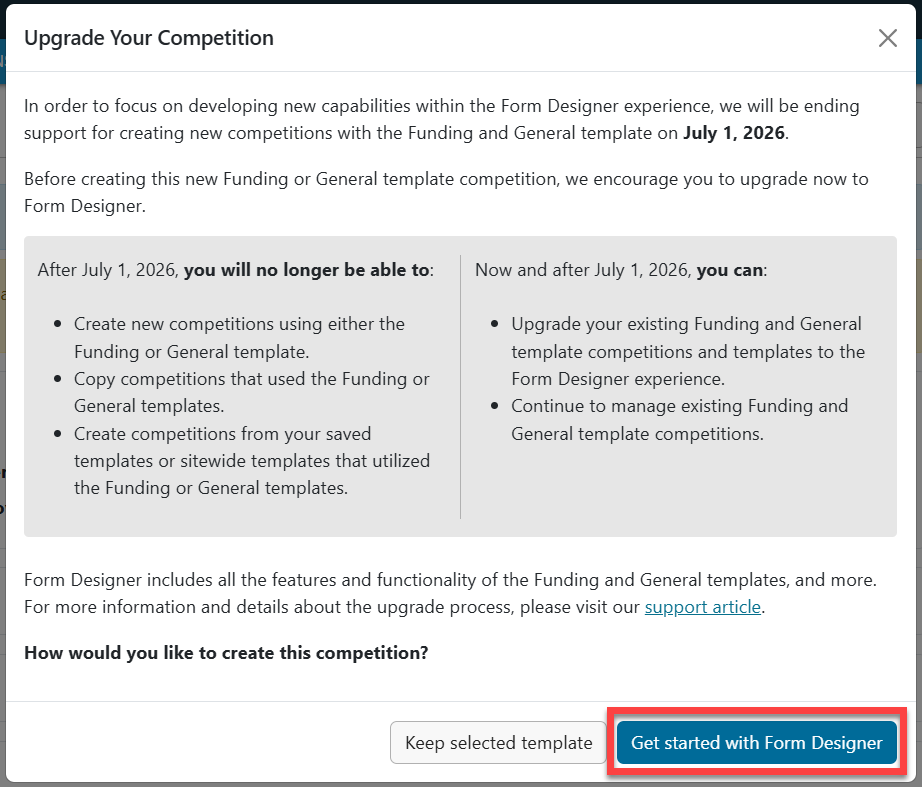
- Depending on how complicated your competition is, it may take a few moments to transfer all items.
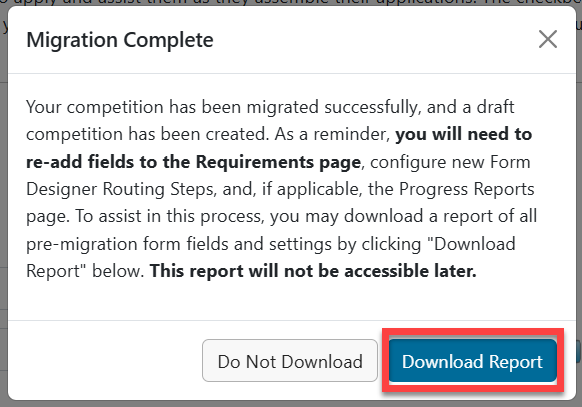
- When the draft has been created, you'll see the message below on the screen.
- Click Download Report to access the Excel report of all fields.
Interpreting the Migration Tool Report
Tabs
- Requirements - Application form fields
- Routing Steps - Only if you used Build my own Form routing steps. The tab(s) will be labeled with the routing step name(s).
- Progress Reports - Each progress report will have a separate tab.
Columns
- Section Name (progress reports only) - Grouped questions in a specific area, which in FDT is Sections
- Field Name - Question label, which in FDT is Field label
- Type - Base question type (see chart below)
- Required? - Yes or blank (not required), which in FDT is denoted by a red asterisk
- Notes or Instructions - There are many ways to add instructional text in FDT: Adding Instructions. Some fields will also have notes about how the question was used in the legacy template.
- Choices - For multiple response questions, all choices are listed with semi-colons in between
Field Type Chart
- Some features and question types from your legacy competition may have identical names in FDT (e.g., File Upload, Primary Organization).
- The chart below focuses on field types you may see in the export that could be re-built in a variety of ways using FDT.
- Click any of the linked text to explore and compare field types.
| Legacy question type listed on the report | FDT field(s) to explore/use instead |
| File Upload | File Upload Specifying File Extensions |
| Date | Date (Field Type) |
| Multiple Choice | Multiple Choice Dropdown Single-Choice Matrix |
| Multiple Select | Checkboxes |
| Text Field | Text Field Dynamic Profile |
| Rich Text Area | Rich Text Field Text Area Validation (Set Character Limit) |
| Number | Number (Field Type) |
| Yes/No | True/False (Yes/No) |
| (Build it yourself) | Acknowledgment Statement |
| Add Contacts for Notifications Primary Organization Co-Applicants Reference Letters Applicant-Driven Routing Steps Application Keywords | InfoReady Tools |
| Comments to Administrator | Text Area with Hide from Applicants box checked |
Tips for Rebuilding Forms in FDT
- Paragraph fields are the easiest way to add longer blocks of instructional text.
- For file uploads, you can specify file extensions to require a certain format, like .pdf.
- Additional features that appeared at the bottom of the legacy Requirements page are all grouped together as InfoReady Tools.
- Legacy forms always included an "Add Other Email Addresses for Notifications" feature by default. In FDT, administrators can choose to add this to the form or not: Form Designer Template: Add Contacts for Notifications.
- Because Applicant-Driven routing steps exist on both the Requirements and Routing Steps pages, they will not transfer and will need to be reconfigured in the new draft.
- If you need a blinded review process, make sure to hide fields appropriately.